
Before You Begin:
- Ensure the barcode scanner is fully charged.
- "Wake up" the scanner by quickly squeezing the trigger once.
- If your simulation uses multiple iPads, verify that the colored zip tie on the scanner matches the colored zip tie on the back of the assigned iPad.
Step 1: Check the Scanner Status Light
Look at the indicator light on the top of the scanner.
- Blue flashing light = Scanner is in Bluetooth pairing mode.
- Green light = Scanner is not currently in Bluetooth pairing mode and must be reconfigured.
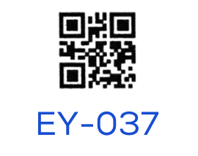
Step 2: Scan the Pairing QR Code
Identify your barcode scanner by looking for the branding on the side of the device.
Scan the pairing QR code associated with your device to place it into Bluetooth mode.

Step 3: Connect to the iPad
- Open Settings > Bluetooth on the iPad.
- Ensure Bluetooth is turned on.
- Wait for the scanner to appear in the list of available devices.
- Tap the scanner name to connect.
- Rename the device if necessary.
- Once connected, test the scanner by scanning a barcode.
Need Additional Help?
Submit a support request using one of the following methods:
- Visit www.sim2grow.com/support
- Email help@sim2grow.com
- Scan the support QR code located on the side of the medication cart
Our support team will assist you with additional troubleshooting if necessary.